Deploy Spring Boot applications onto AWS ECS Fargate using AWS CDK. > Các bước chuẩn bị > Chuẩn bị IntelliJ IDEA
Chuẩn bị IntelliJ IDEA
Chuẩn bị IntelliJ IDEA
- Dùng IntelliJ IDEA mở project spring boot vừa tạo
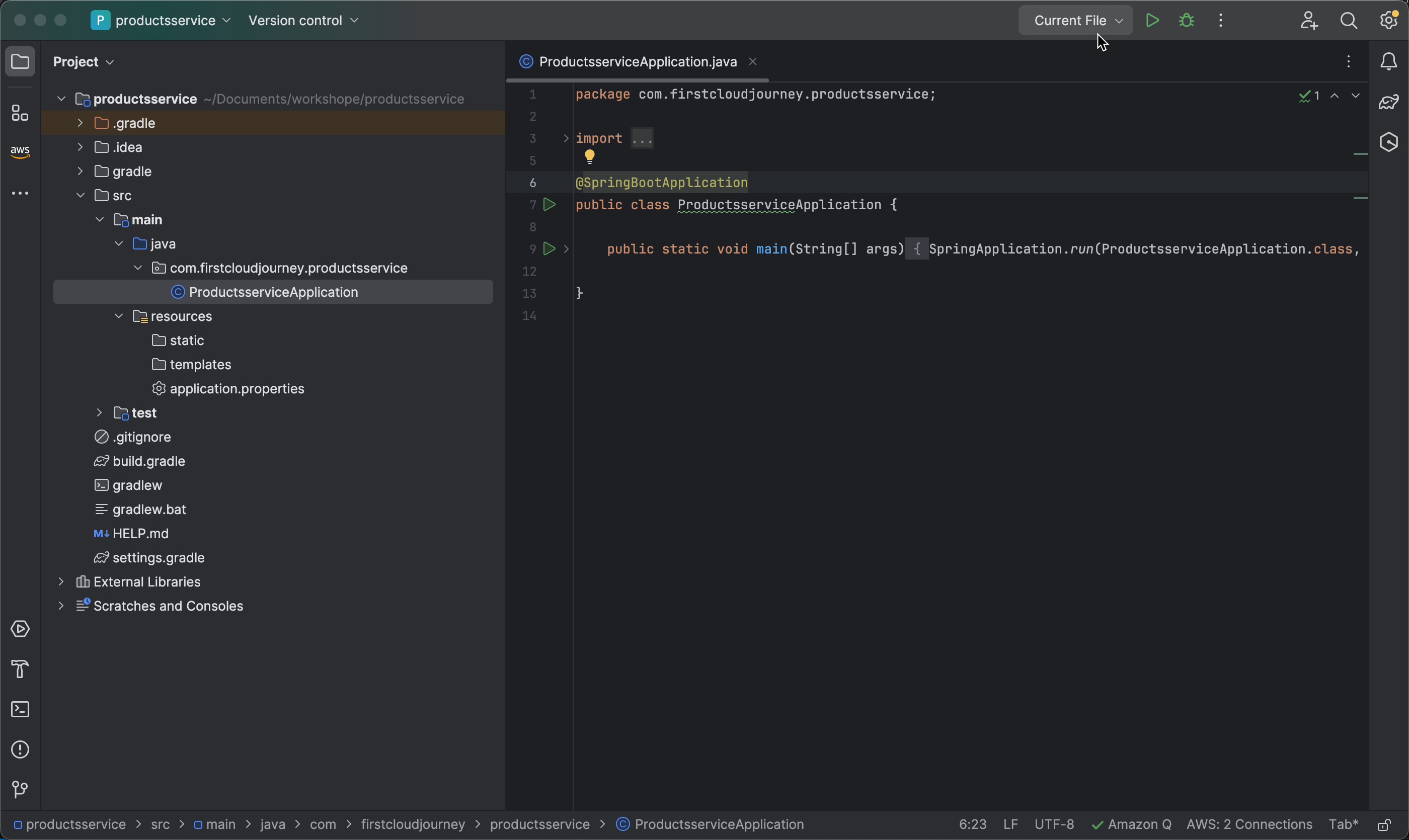
- Cài đặt project
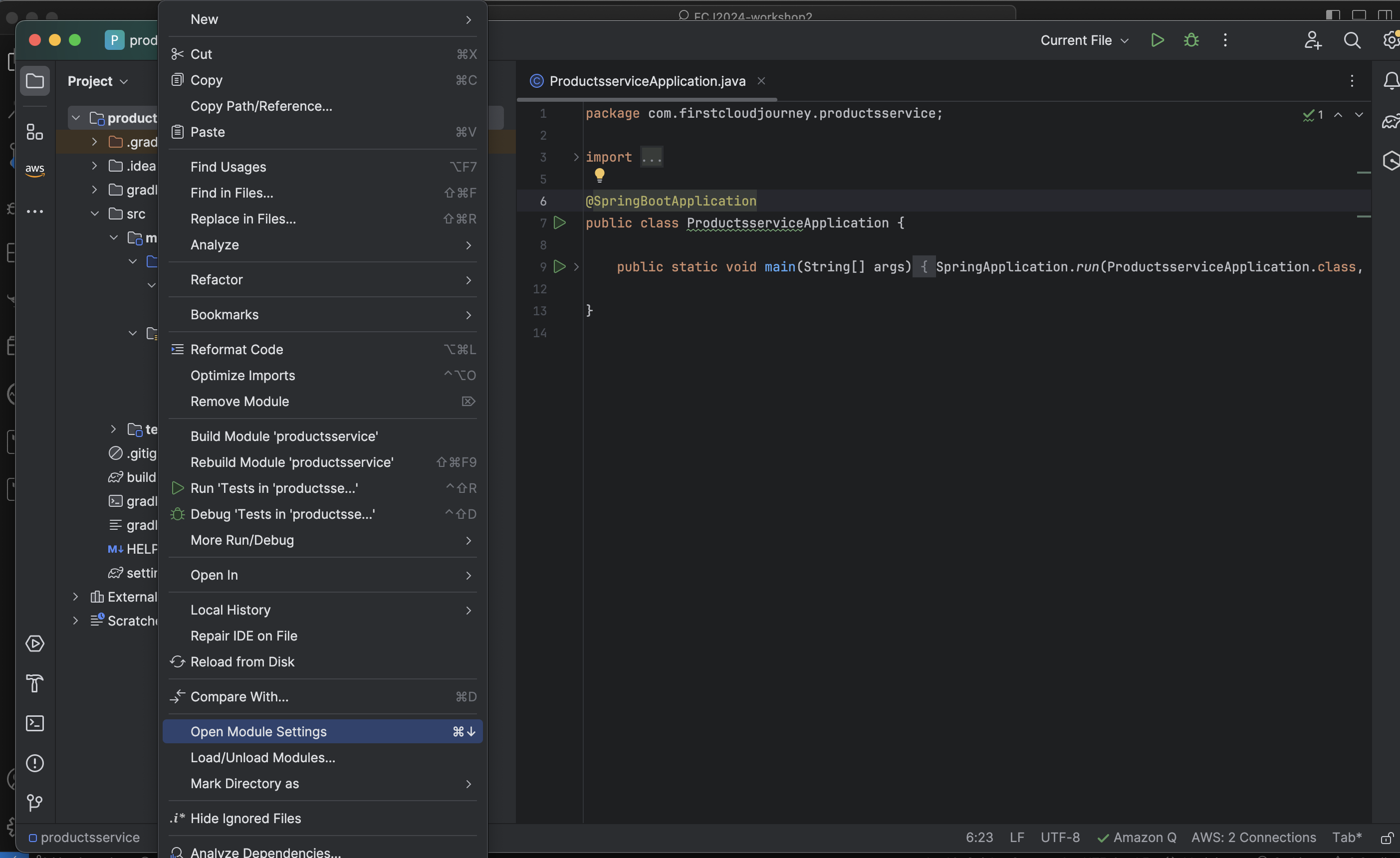
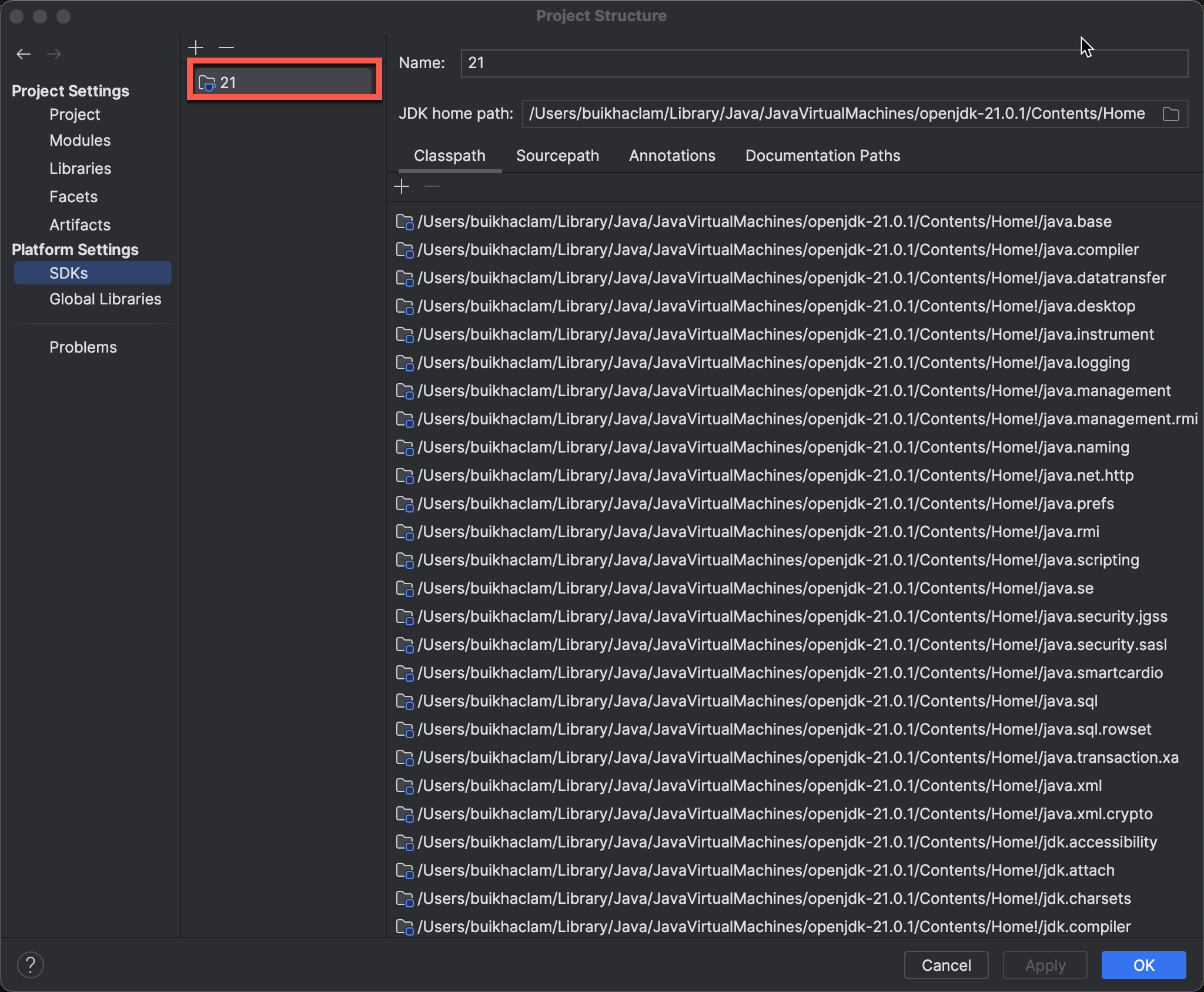
- lick phải vào project chọn Open Module Settings
-
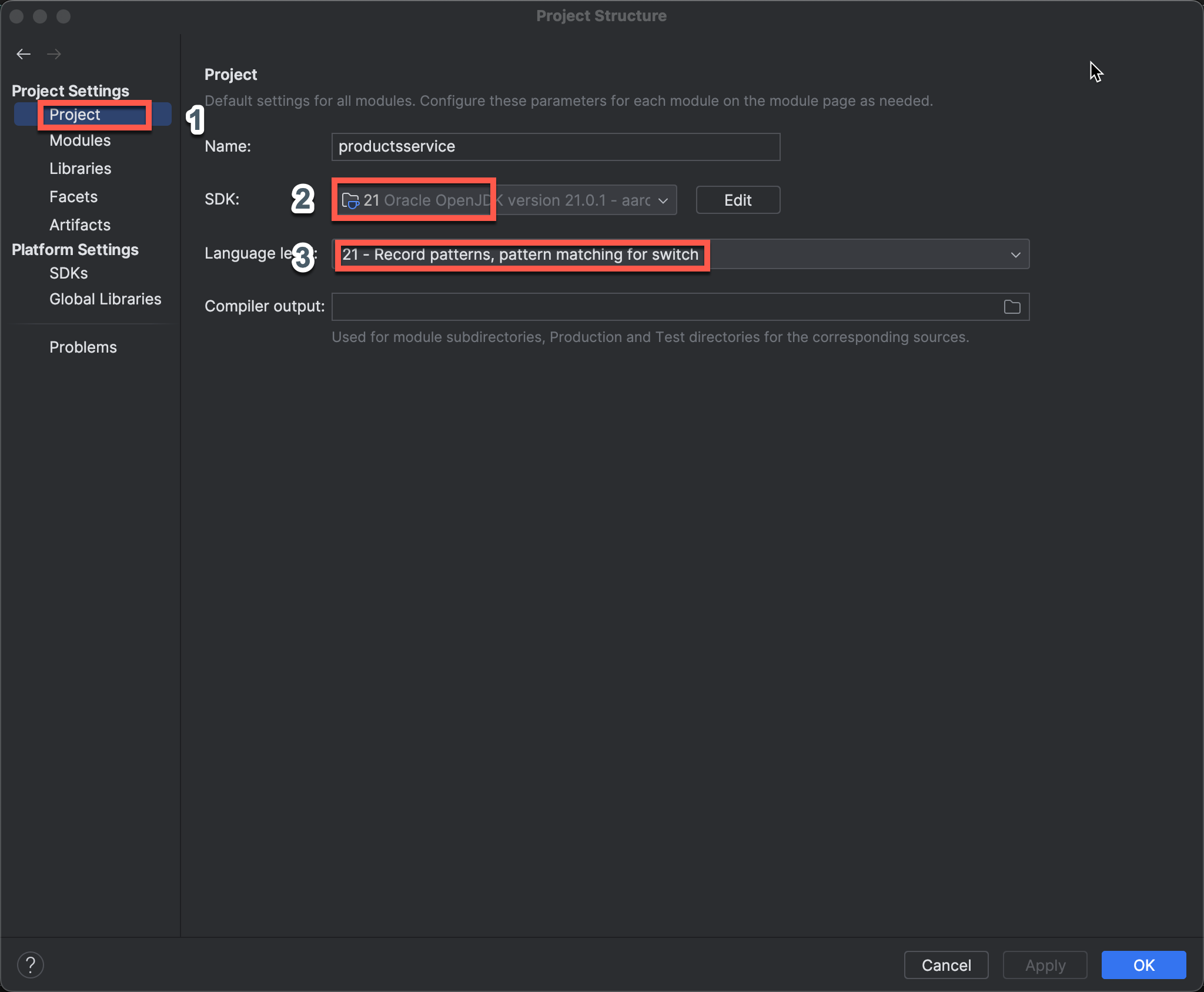
Chọn Project Setting, hãy đảm bảo rằng project của bạn có SDK là 21 và language level là 21
-
Chọn Platform setting, hãy đảm bảo rằng platform SDK của bạn là 21
Chạy spring boot project
-
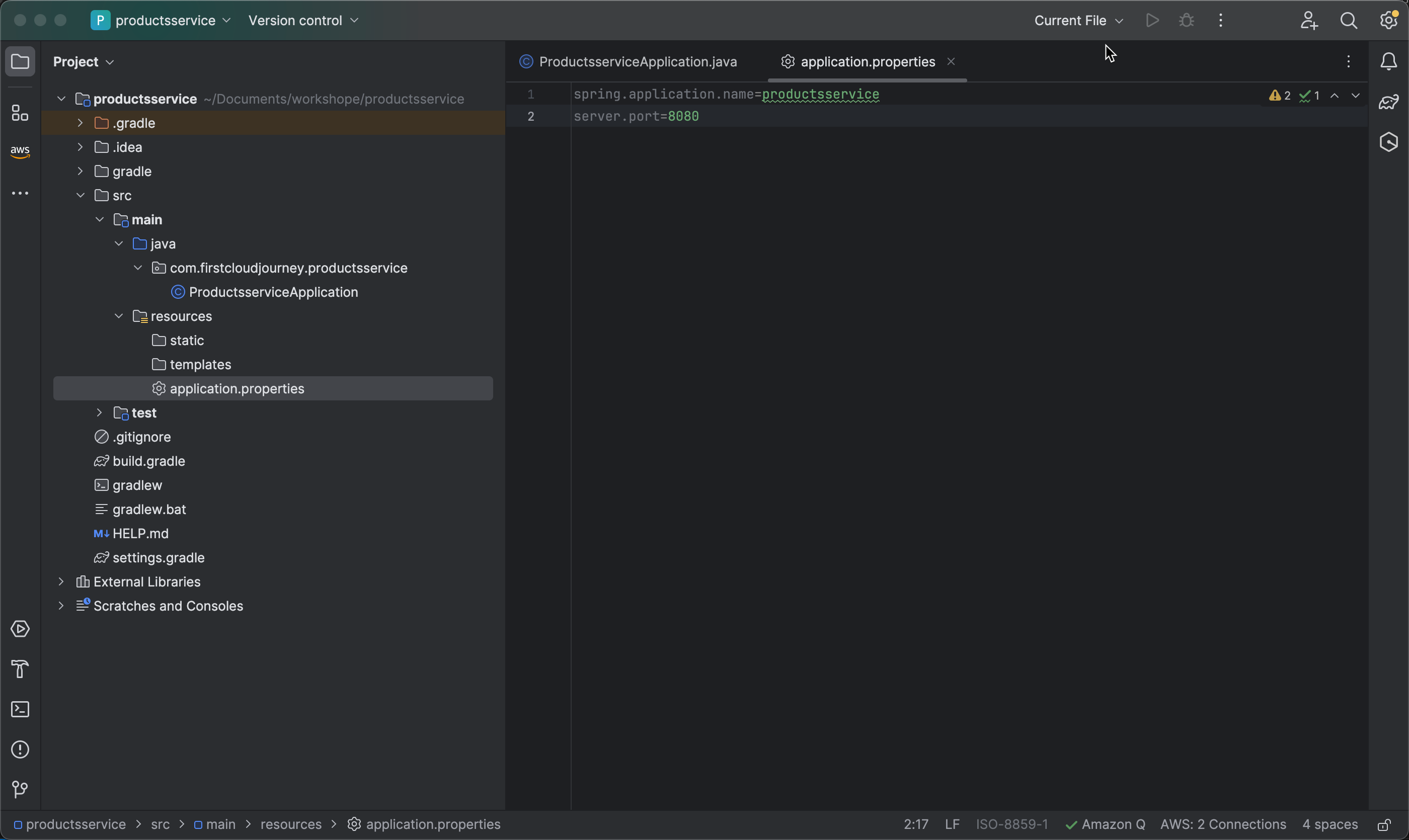
Mở file application.properties thêm vào server.port=8081 để cấu hình project chạy trên port 8081
-
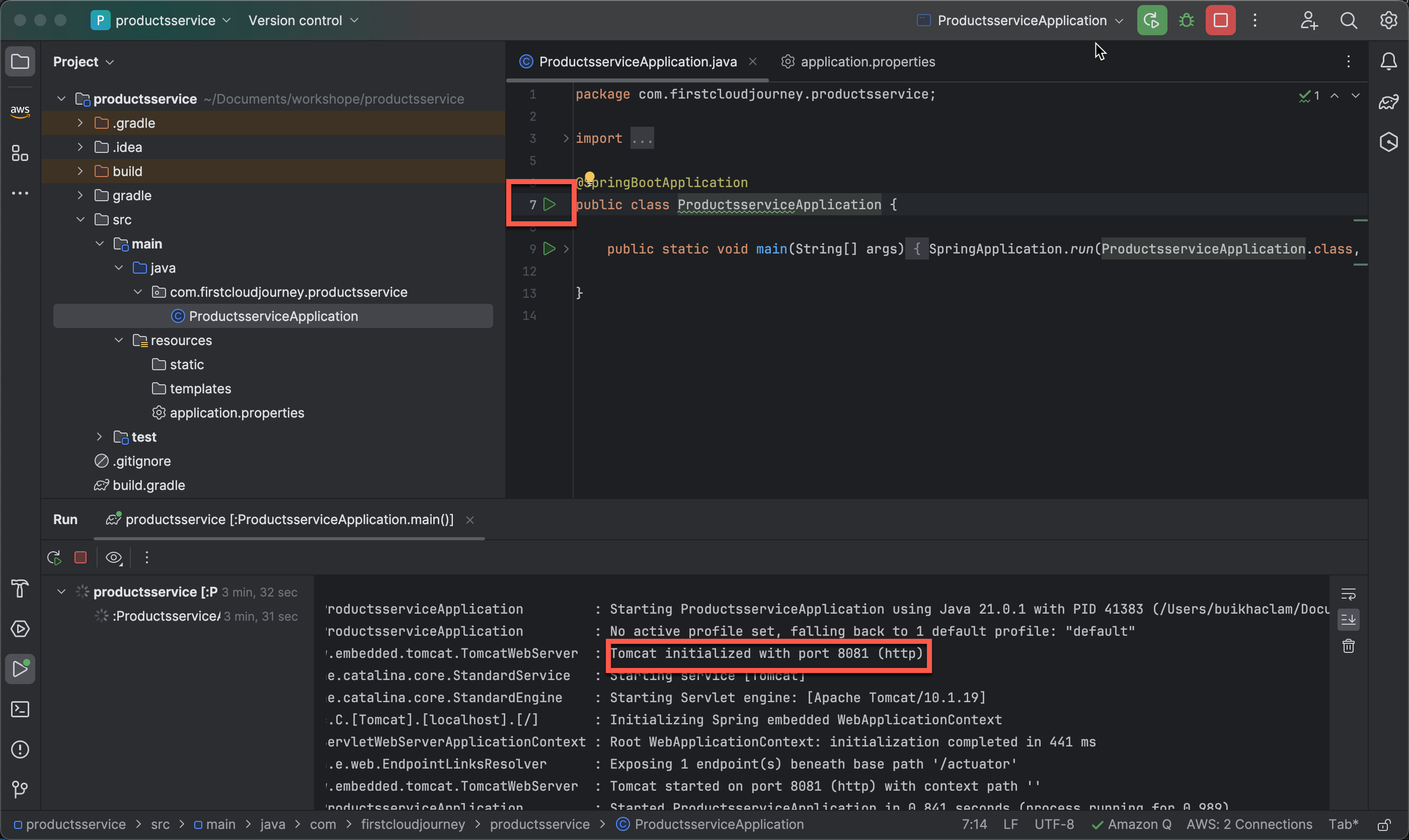
Nhấn vào biểu tượng Run để chạy project, bạn có thể thấy project đang chạy trên port 8081
Kiểm thử project trên postman
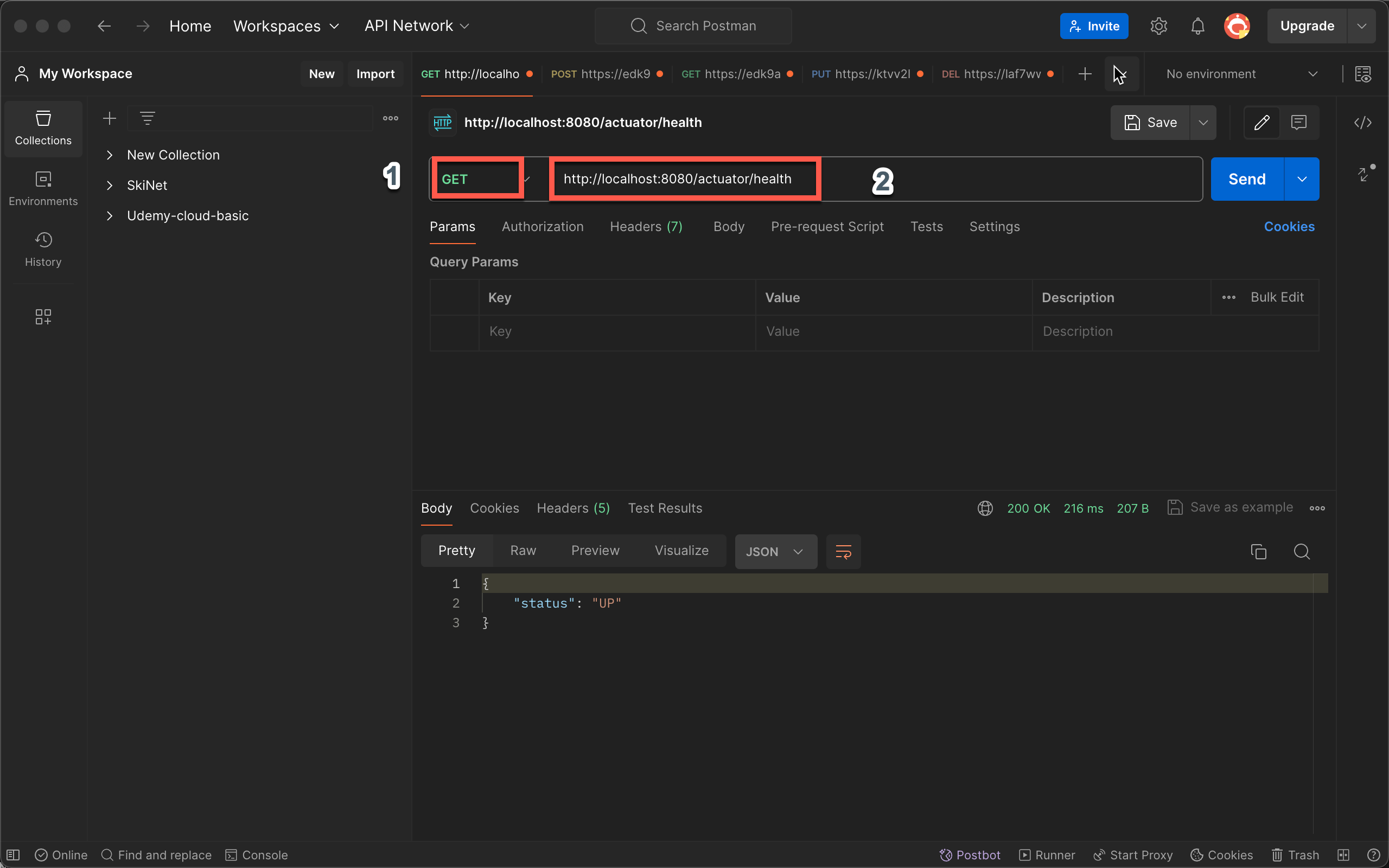
- Tạo request HTTP GET với đường dẫn
http://localhost:8080/actuator/healthđể kiểm tra
- Reponse trả về “status”: “UP” chứng tỏ project hoạt đông bình thường
Thêm thư viên Log4j2
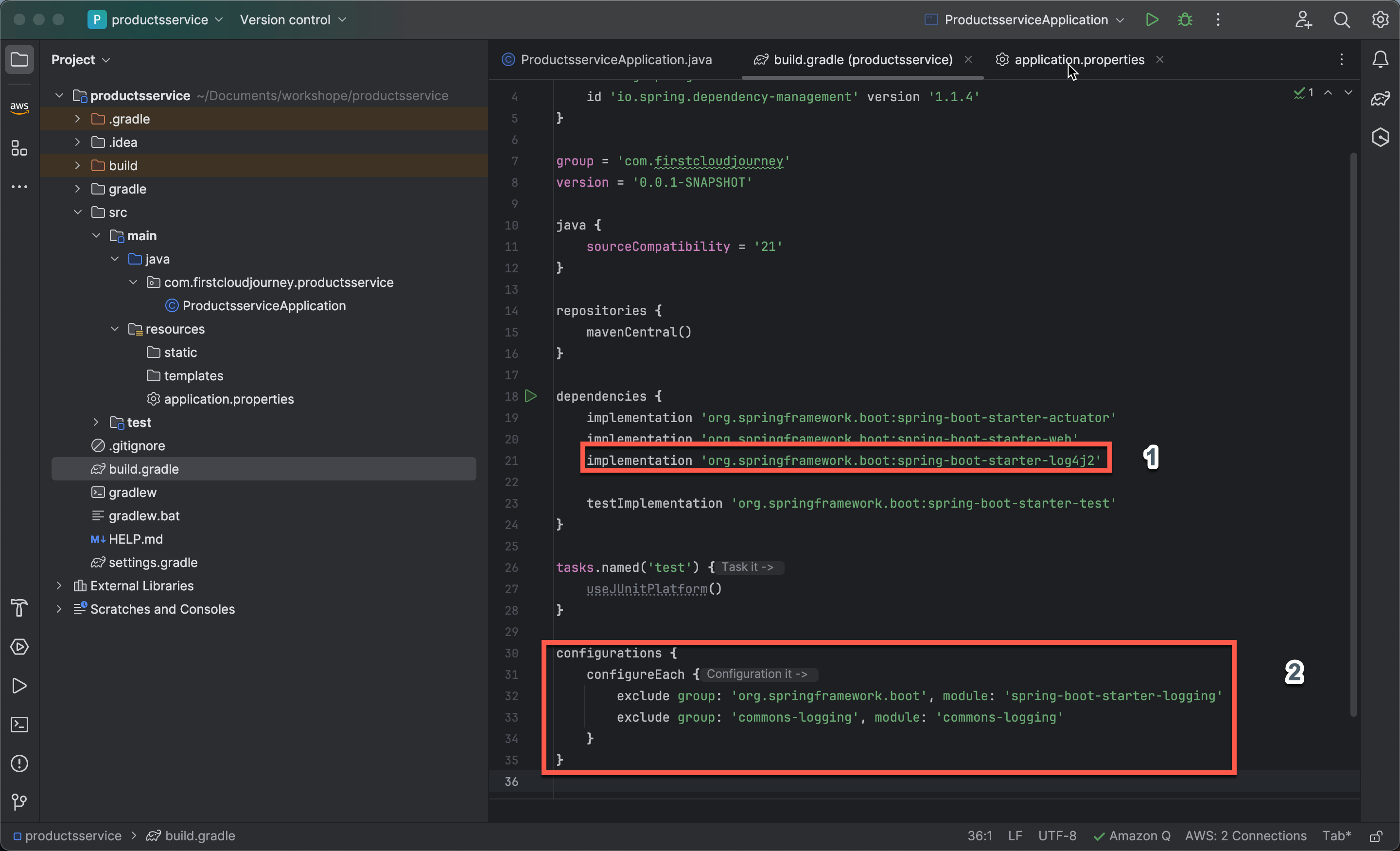
- Mở file build.grade
- Trong phần dependencies thêm thư viện Log4j2 bằng cách thêm đoạn mã sau
implementation 'org.springframework.boot:spring-boot-starter-log4j2' - Thêm configurations
- Trong phần dependencies thêm thư viện Log4j2 bằng cách thêm đoạn mã sau
configurations {
  configureEach {
  	exclude group: 'org.springframework.boot', module: 'spring-boot-starter-logging'
  	exclude group: 'commons-logging', module: 'commons-logging'
  }
}
Tạo Controller
-
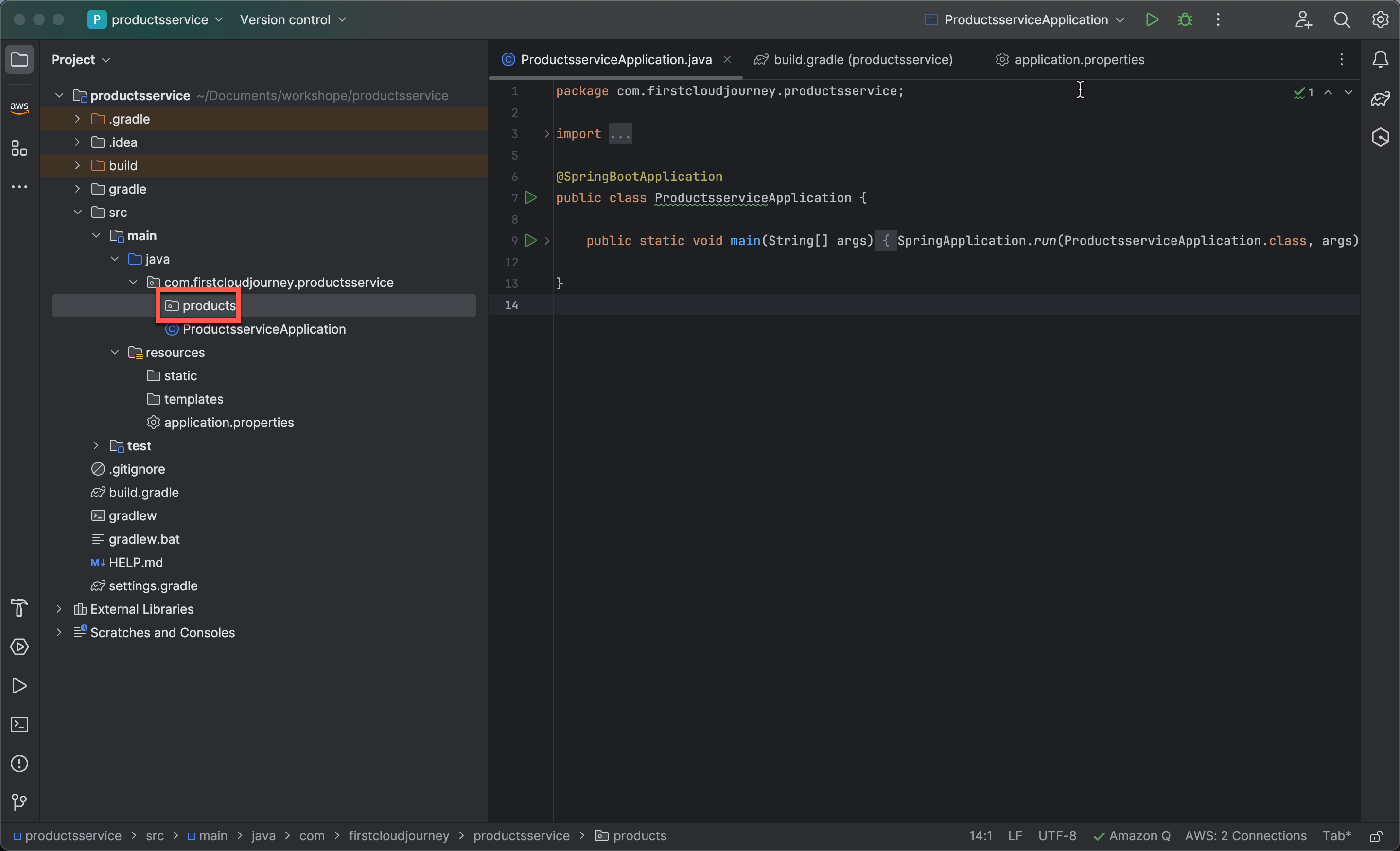
Trong thư mục com.firstcloudjourney.productsservice tạo folder products
-
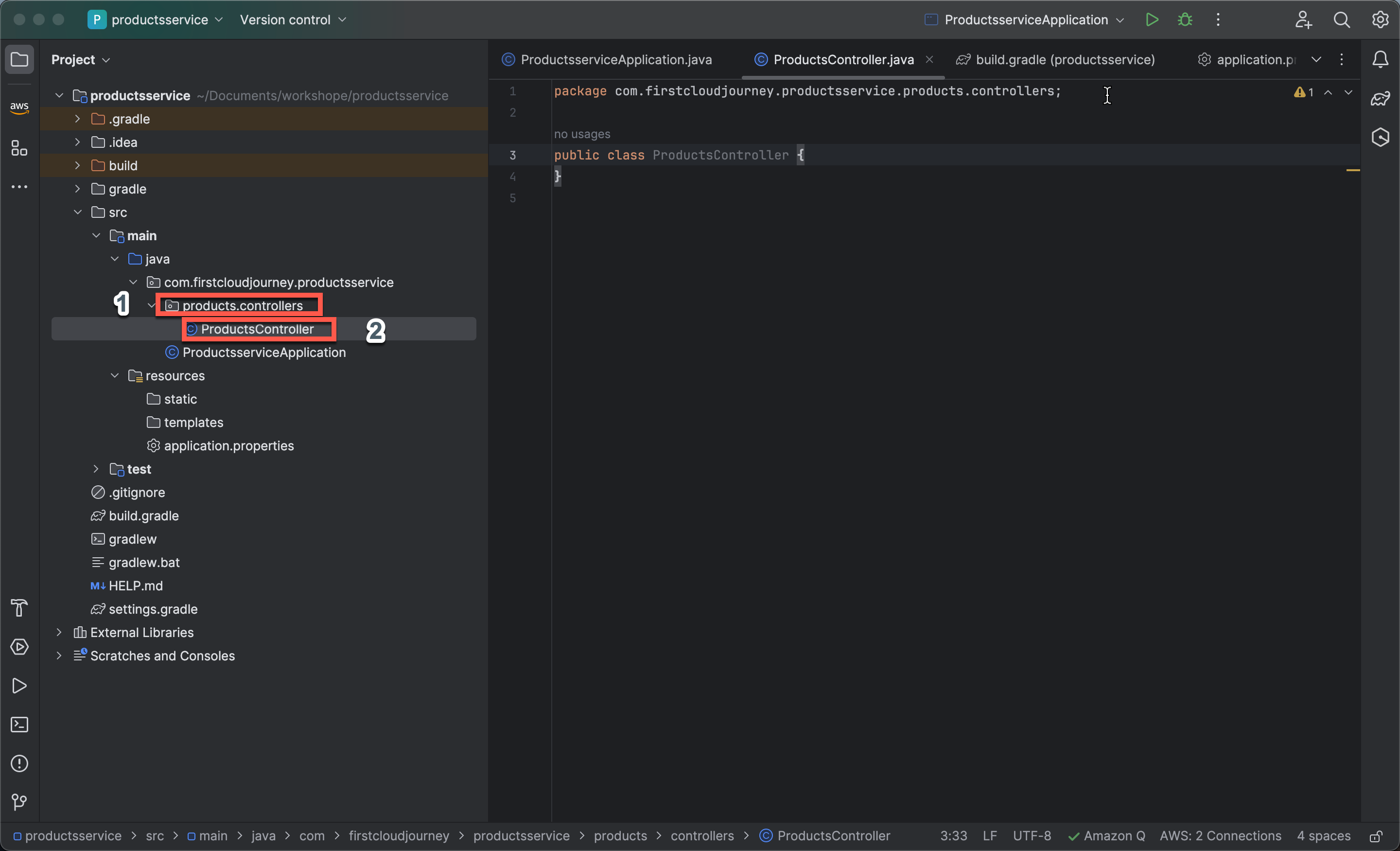
Trong thư mục products tạo thư mục controllers và tạo file ProductsController.java từ thư mục controllers
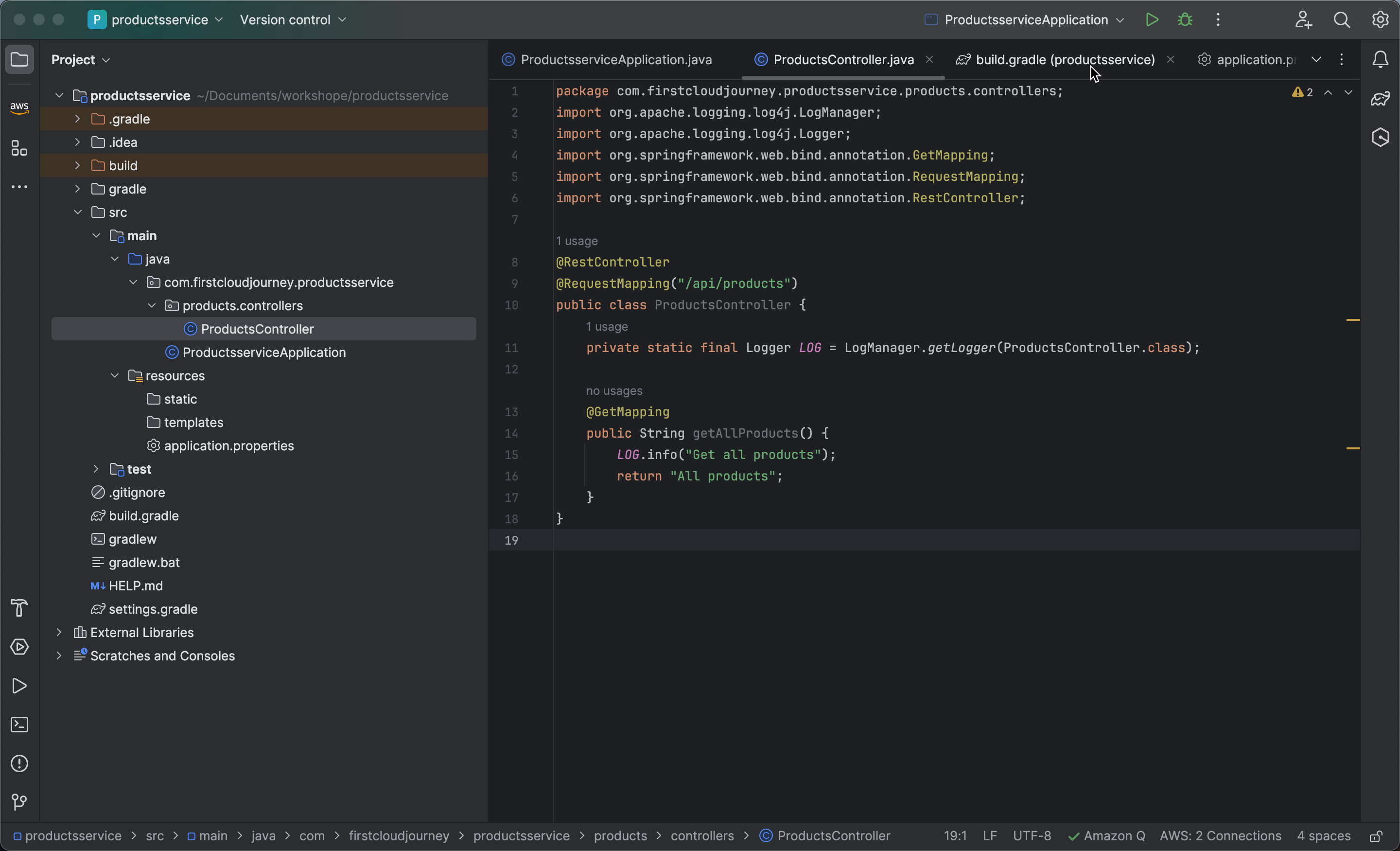
- Copy đoạn code sau vào file ProductsController.java
@RestController
@RequestMapping("/api/products")
public class ProductsController {
    private static final Logger LOG = LogManager.getLogger(ProductsController.class);

    @GetMapping
    public String getAllProducts() {
        LOG.info("Get all products");
        return "All products";
    }
}
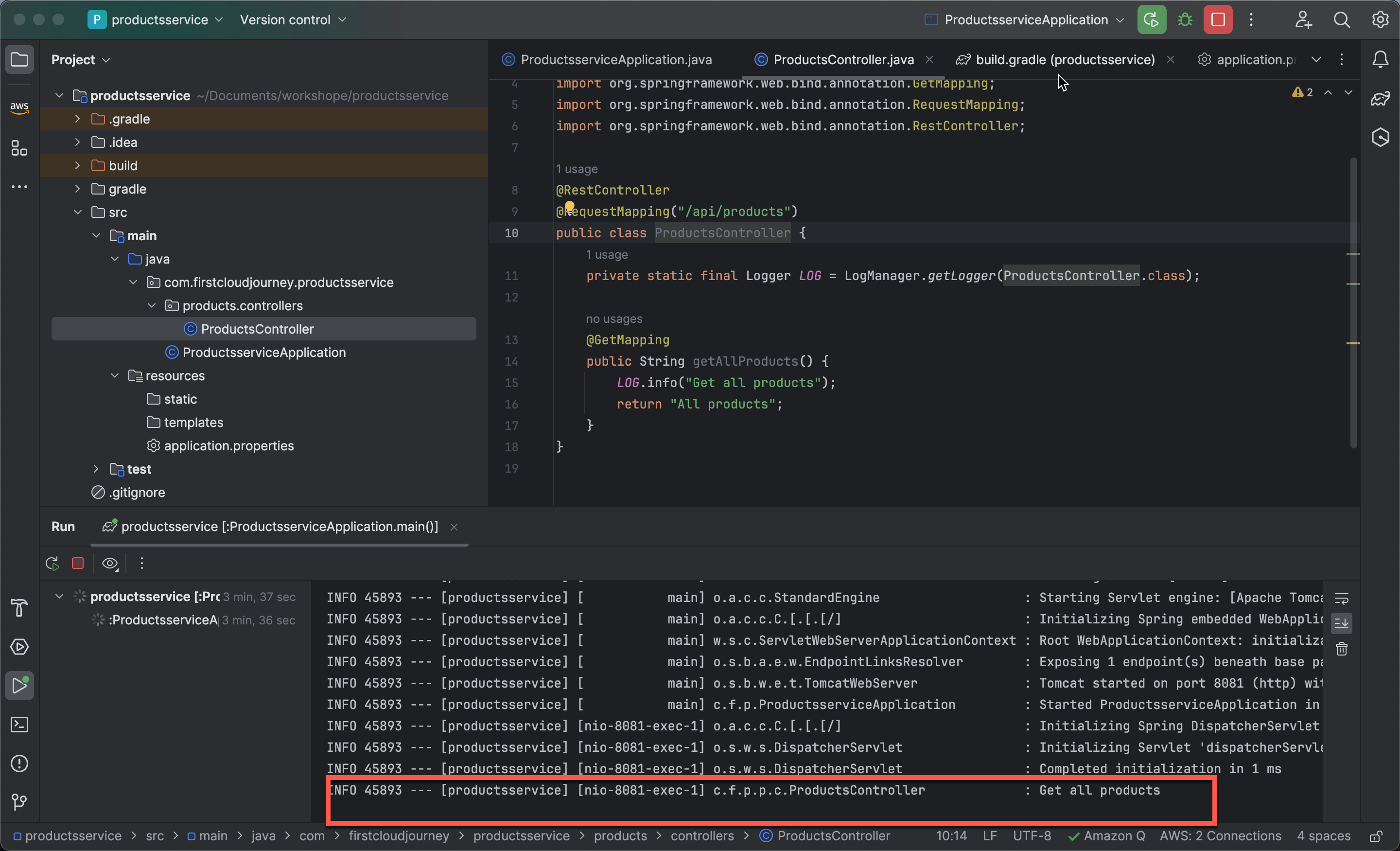
- Chạy project và test trên postman bằng cách tạo request HTTP GET với đường dẫn
http://localhost:8081/api/products
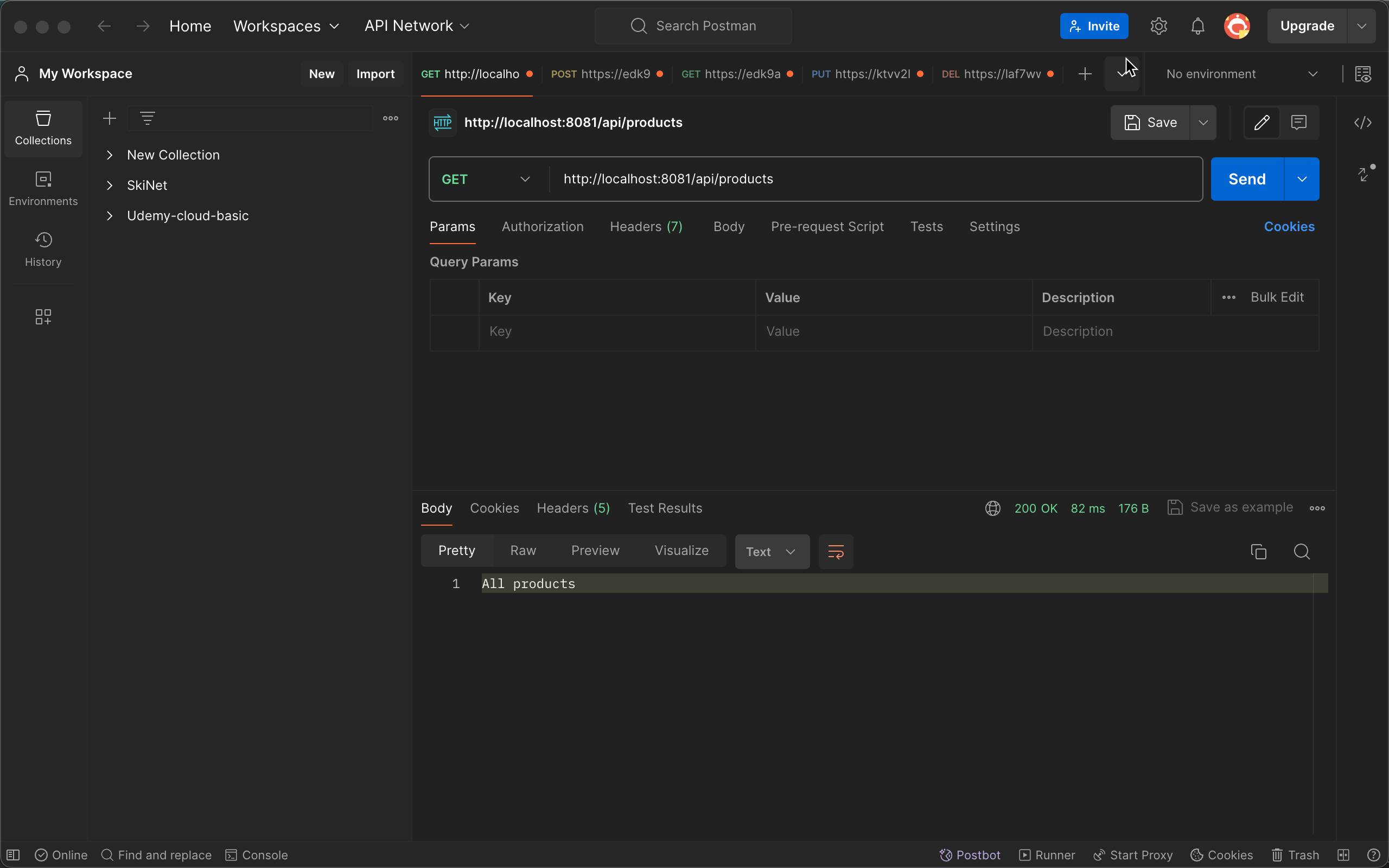
- Kiểm tra log trả về trên termnial khi gọi HTTP GET