Create Dockerfile and Generate Docker Image
Create Task
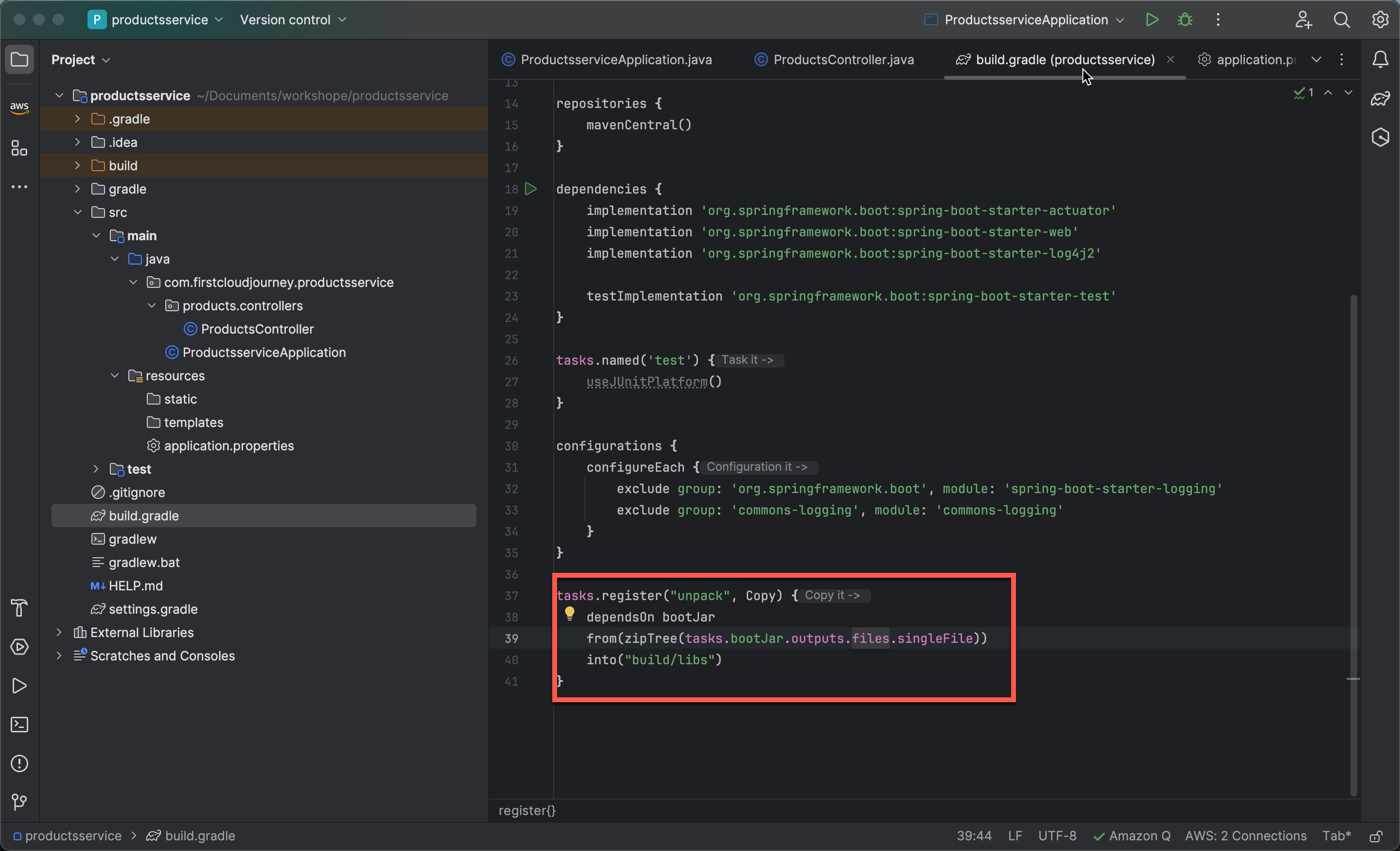
- First, you need to create a task in the build.gradle file by copying the following code block:
tasks.register("unpack", Copy) {
	dependsOn bootJar
	from(zipTree(tasks.bootJar.outputs.files.singleFile))
	into("build/libs")
}
This code defines a Gradle task named “unpack” that copies files from a ZIP archive generated by the “bootJar” task and extracts them into the “build/libs” directory.
Create .dockerignore File
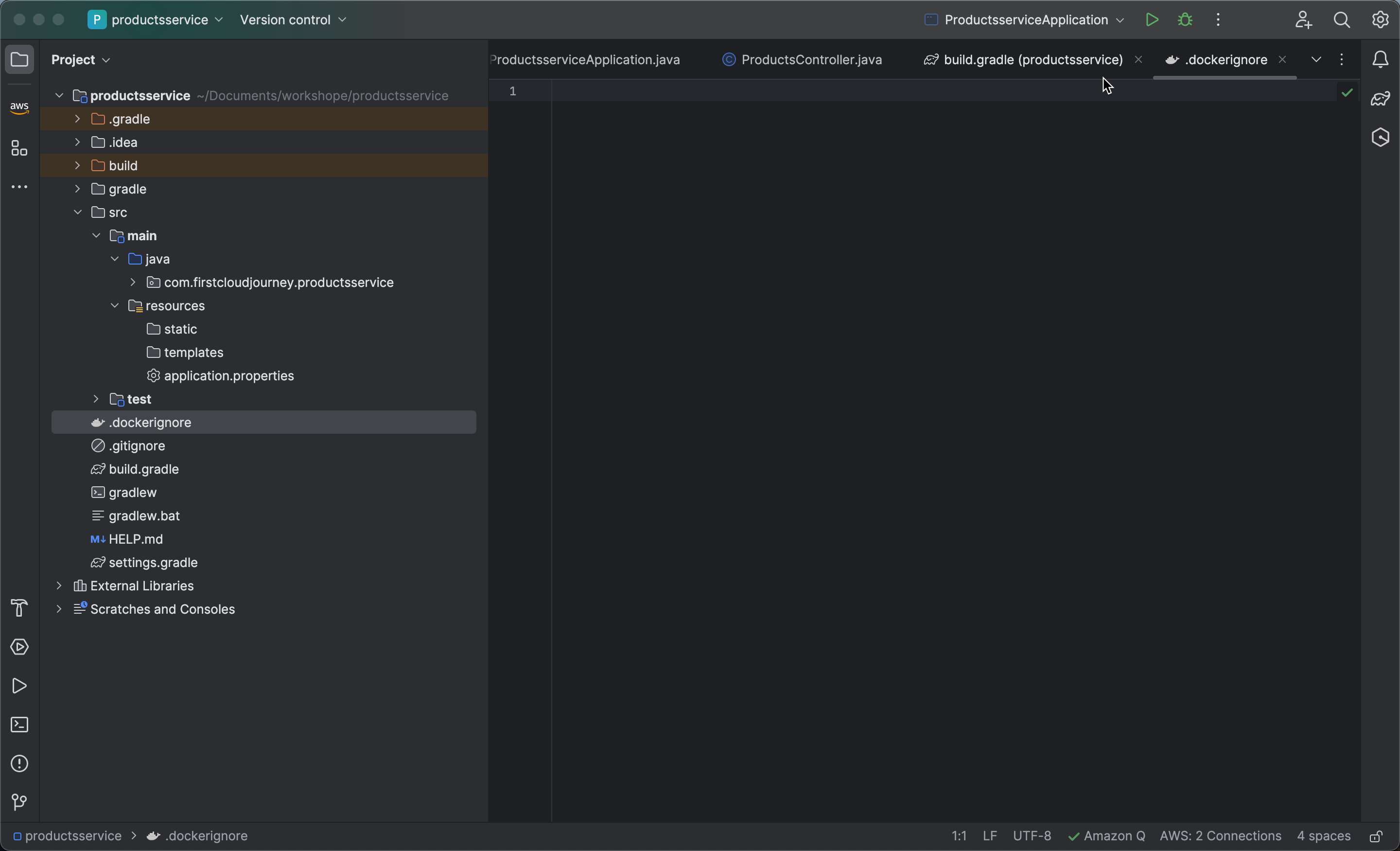
- Create a
.dockerignorefile to specify files and directories that Docker should ignore when building a Docker image from your project components.
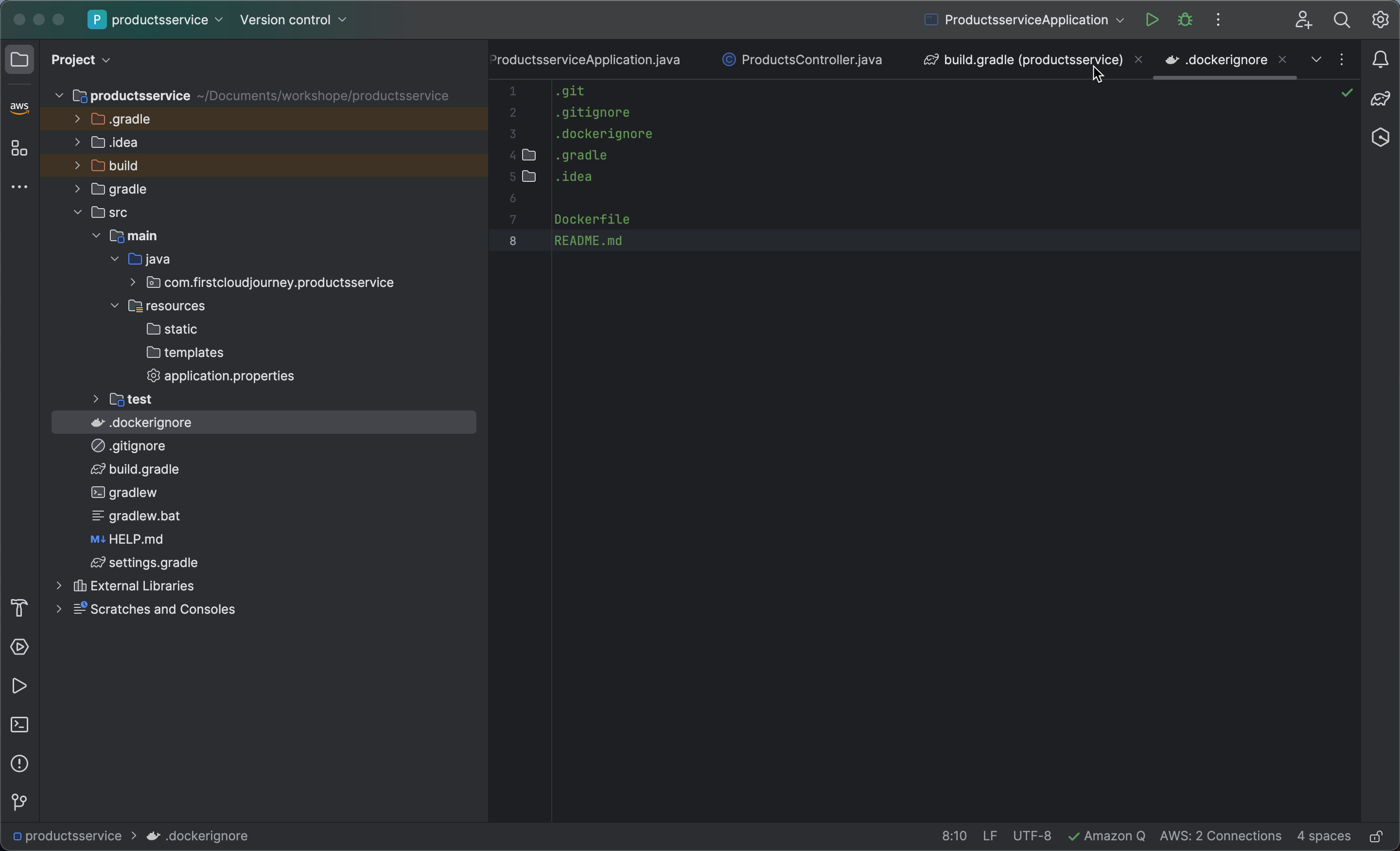
- Copy the code below:
.git
.gitignore
.dockerignore
.gradle
.idea

Dockerfile
README.md
Create file Dockerfile
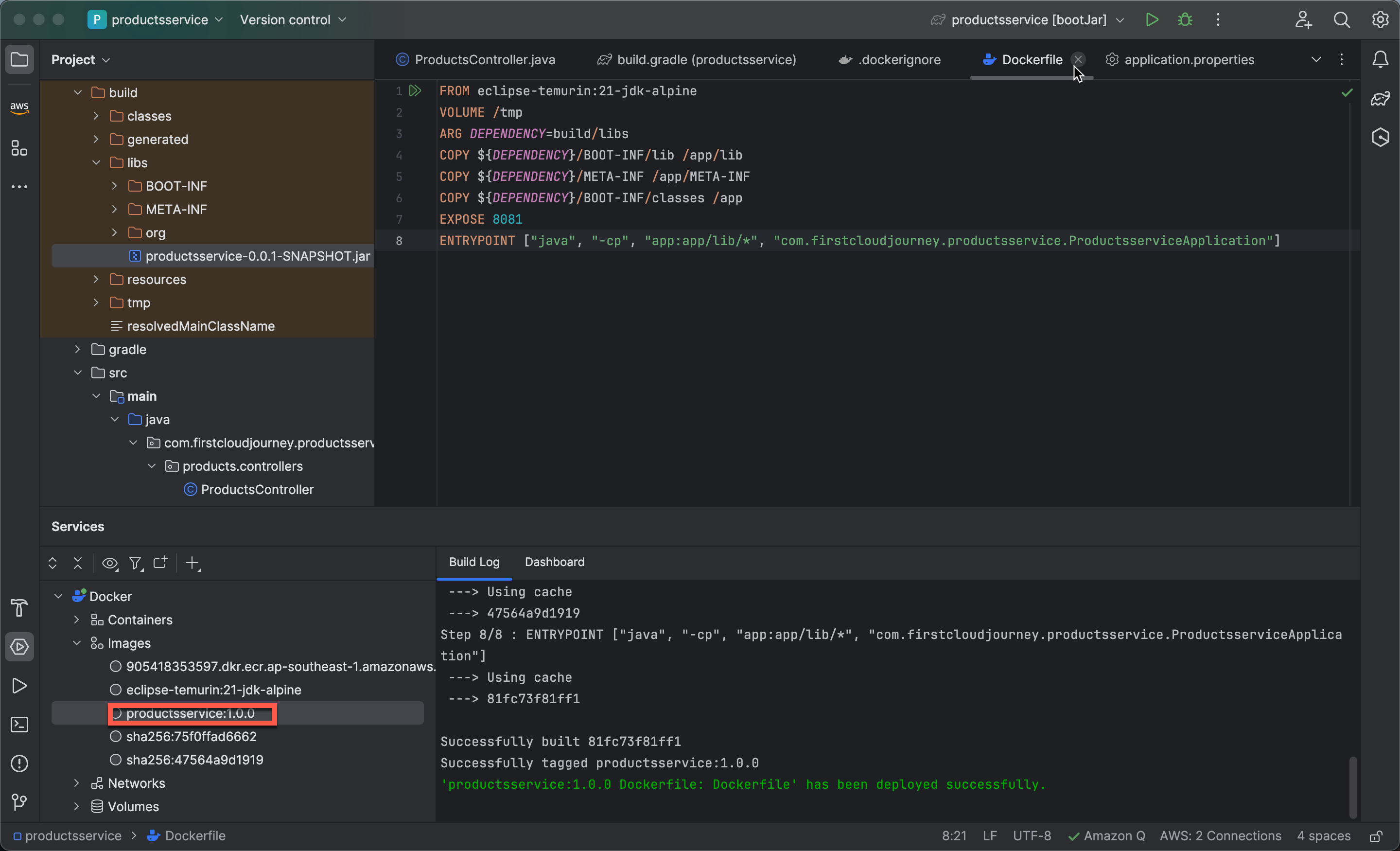
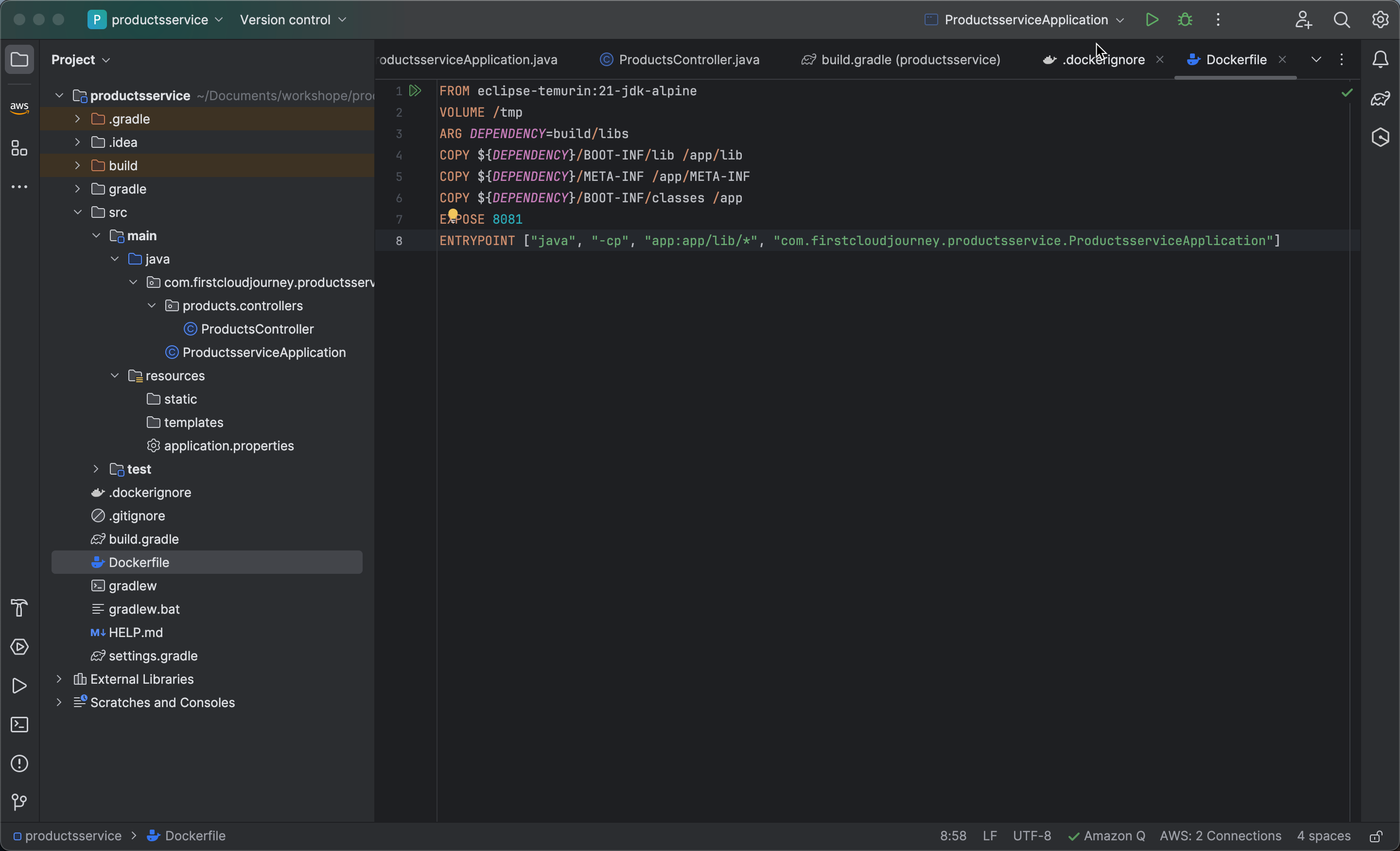
- Create a Dockerfile and copy the code below:
FROM eclipse-temurin:21-jdk-alpine
VOLUME /tmp
ARG DEPENDENCY=build/libs
COPY ${DEPENDENCY}/BOOT-INF/lib /app/lib
COPY ${DEPENDENCY}/META-INF /app/META-INF
COPY ${DEPENDENCY}/BOOT-INF/classes /app
EXPOSE 8081
ENTRYPOINT ["java", "-cp", "app:app/lib/*", "com.firstcloudjourney.productsservice.ProductsserviceApplication"]
Generate Docker Image
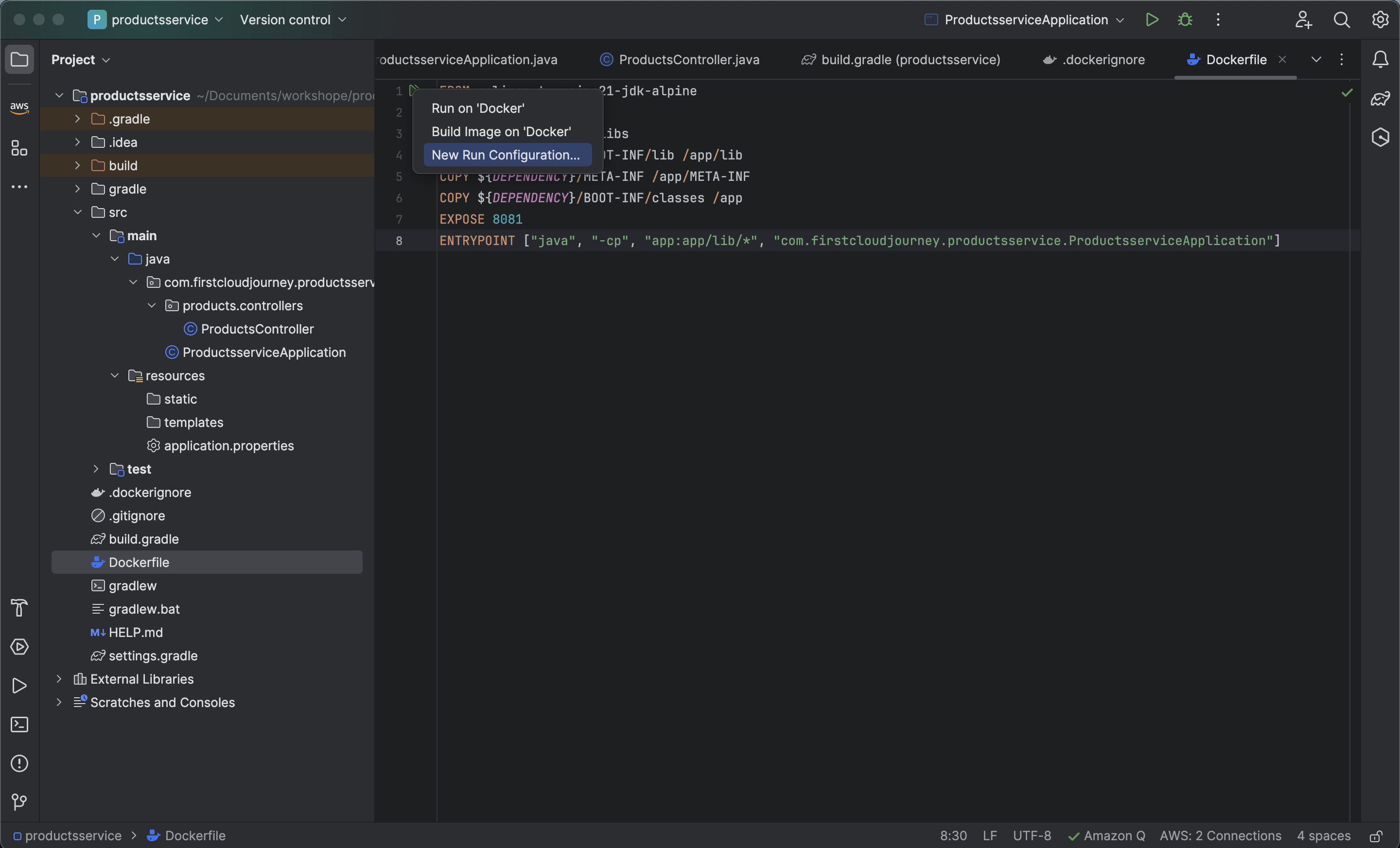
- Next, let’s configure IntelliJ to generate a Docker image:
- Click on the Run icon and select New Run Configuration.
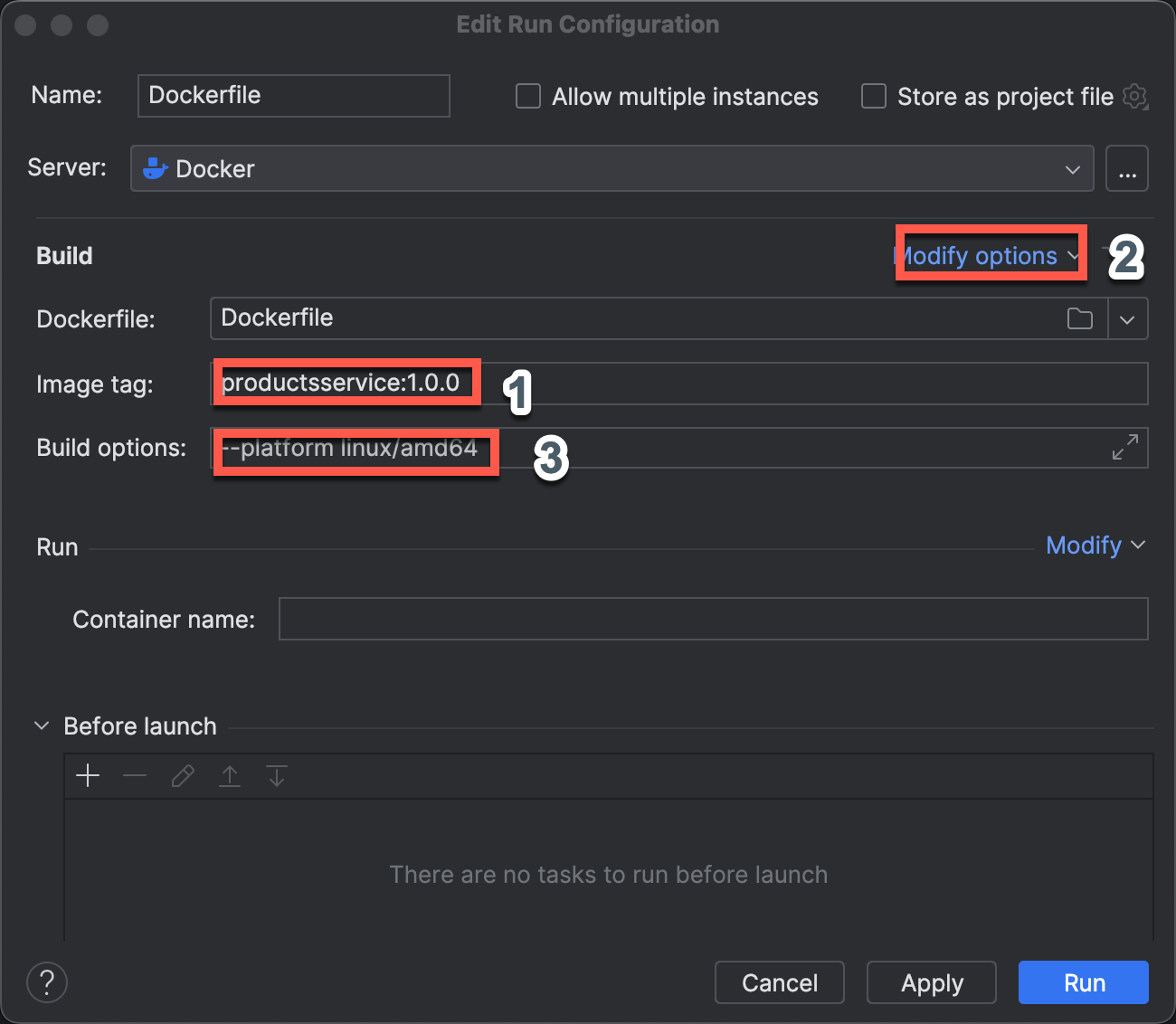
- A popup will appear where we’ll configure as follows:
- For Image Tag, enter
productsservice:1.0.0. - Click Modify Options, then select Build options.
- Once Build options appears, enter
--platform linux/amd64.
- For Image Tag, enter
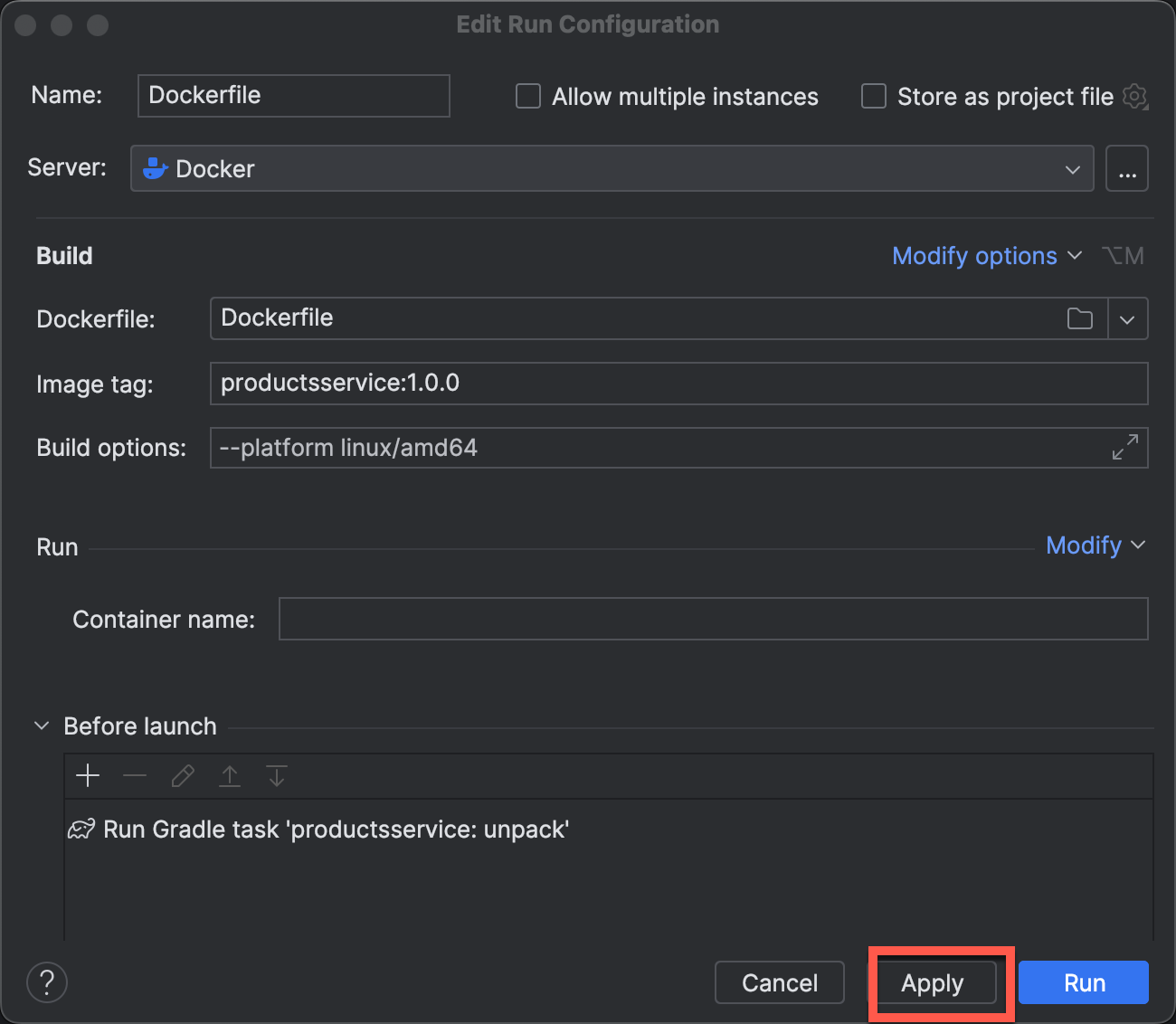
- Next, we need to configure Before Launch:
- Click the + icon and select Run Gradle Task.
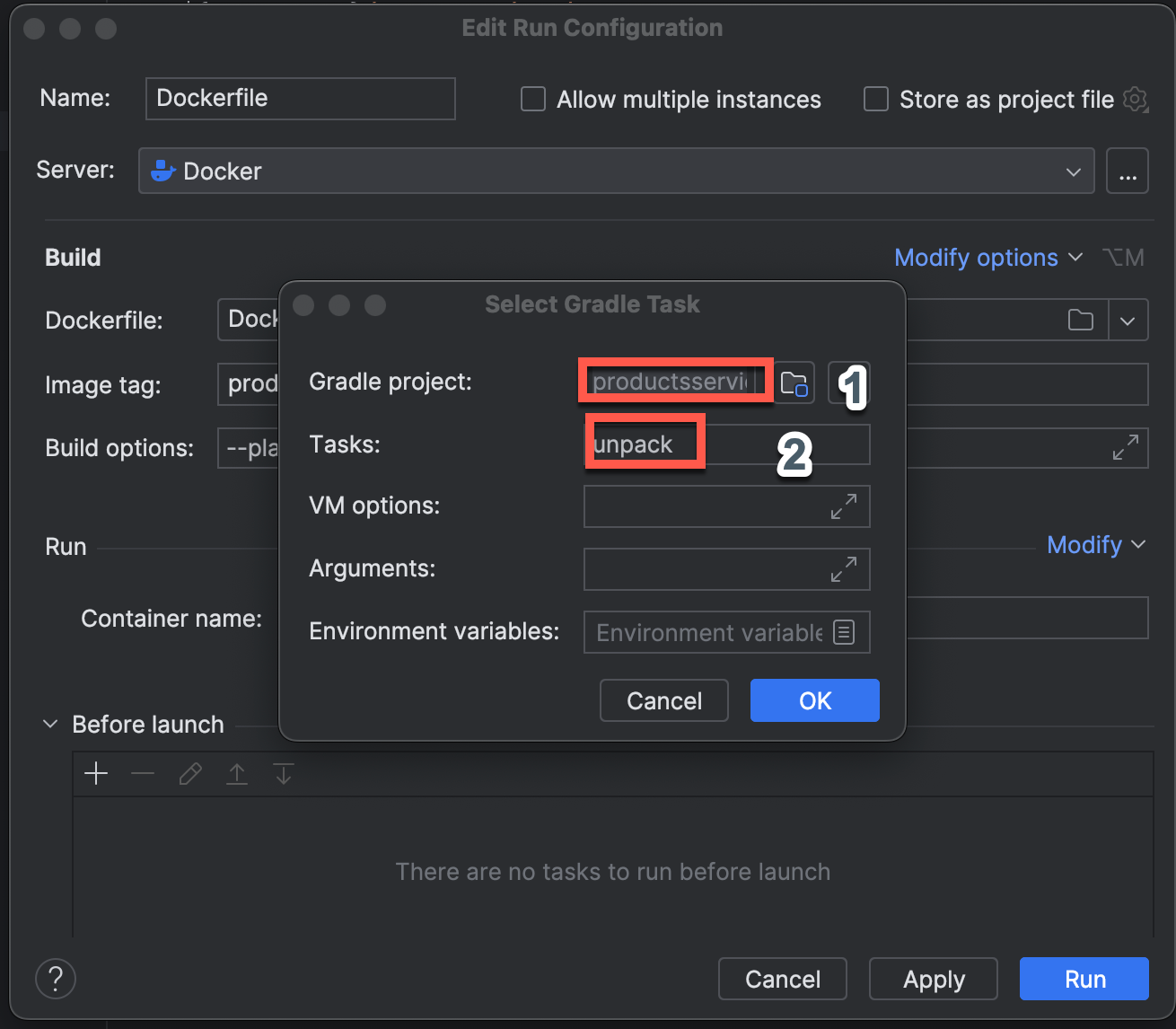
- Then a popup will appear as shown below:
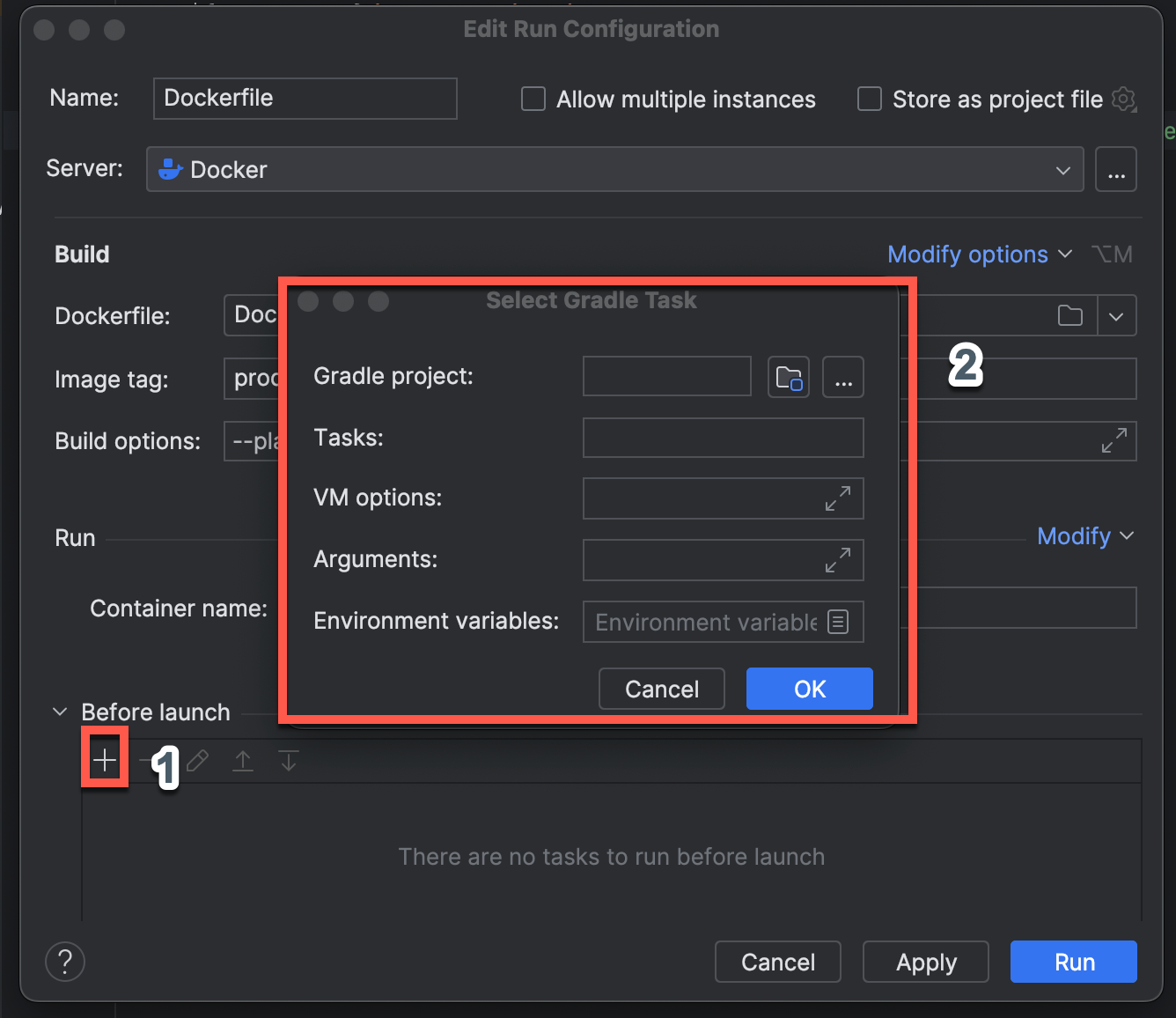
- In the popup for Select Gradle Task:
- For Gradle project, choose productsservice.
- For Task, select the unpack task that we added earlier.
- Click OK.
- After returning to the Edit Configuration popup, click Apply.
Build Application using BootJar
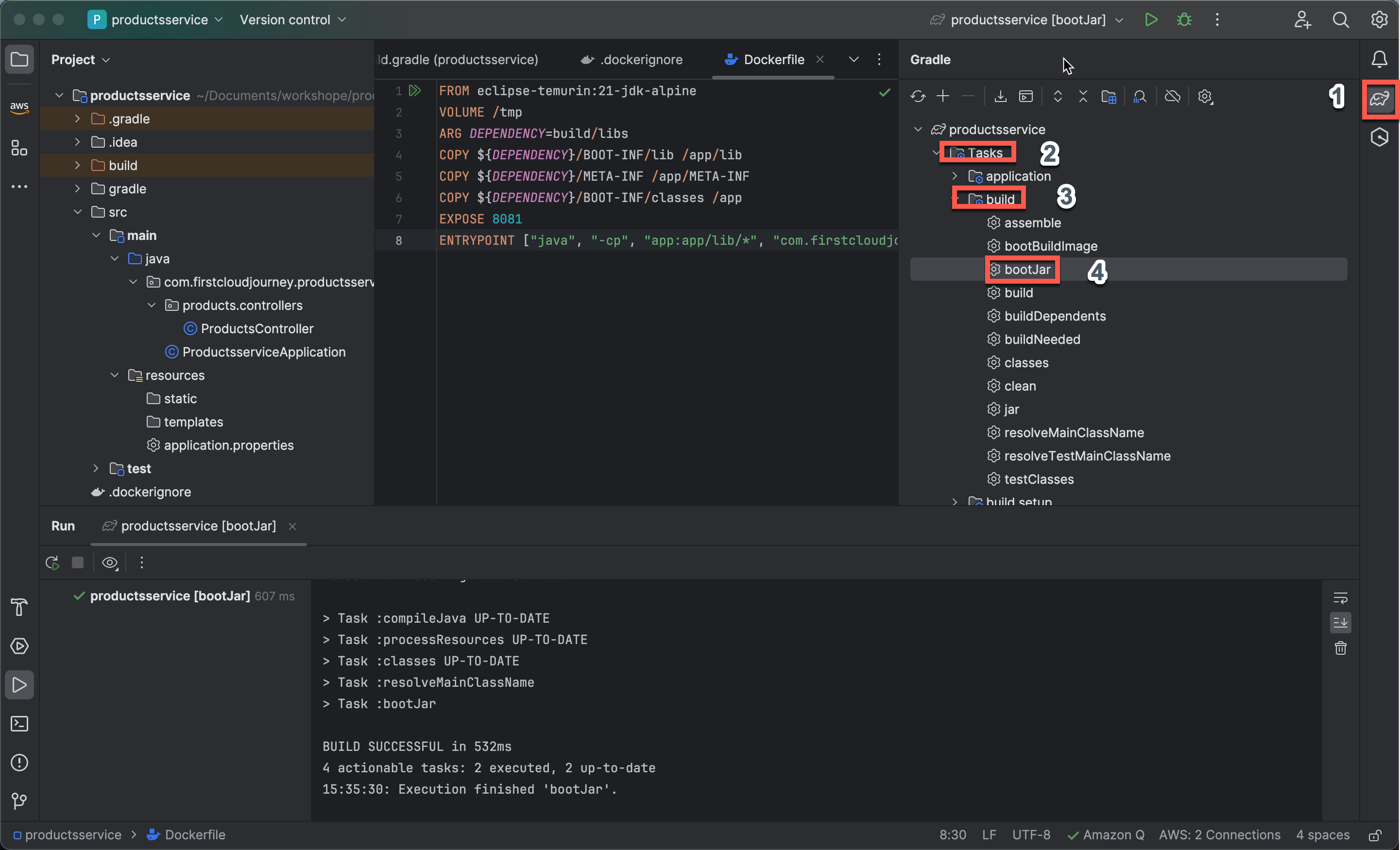
- Next, let’s build the application using bootJar from Gradle:
- Click on the Gradle icon.
- Choose Tasks, then build, and finally click bootJar to build the application.
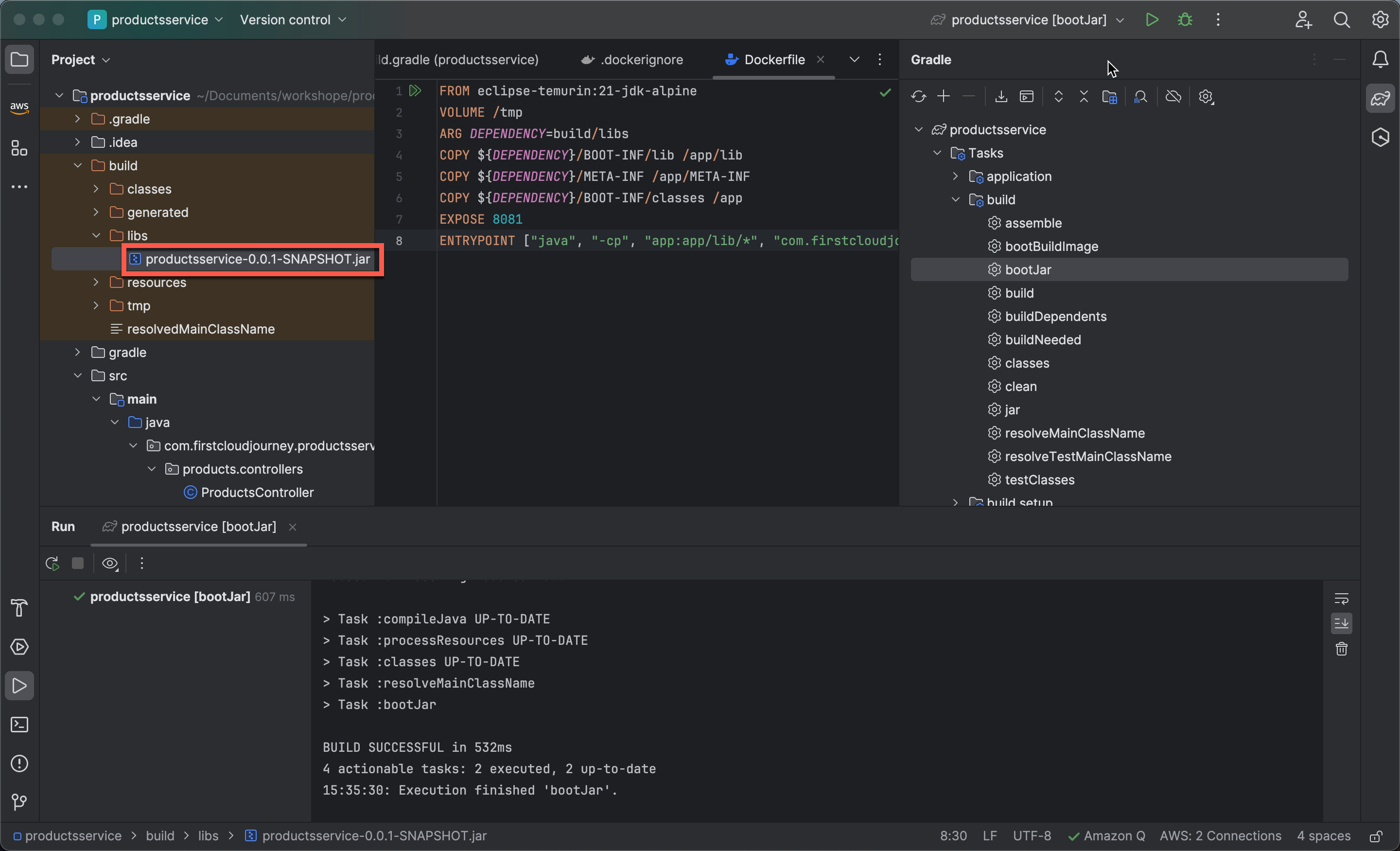
- Check the built application file located in
build/libs.
Generate Docker Image
- Now, let’s create a Docker image from the built application:
- Click on the Run icon on the Dockerfile and choose Build image for ‘DockerFile’.
Make sure you have Docker Desktop running to successfully build the image.
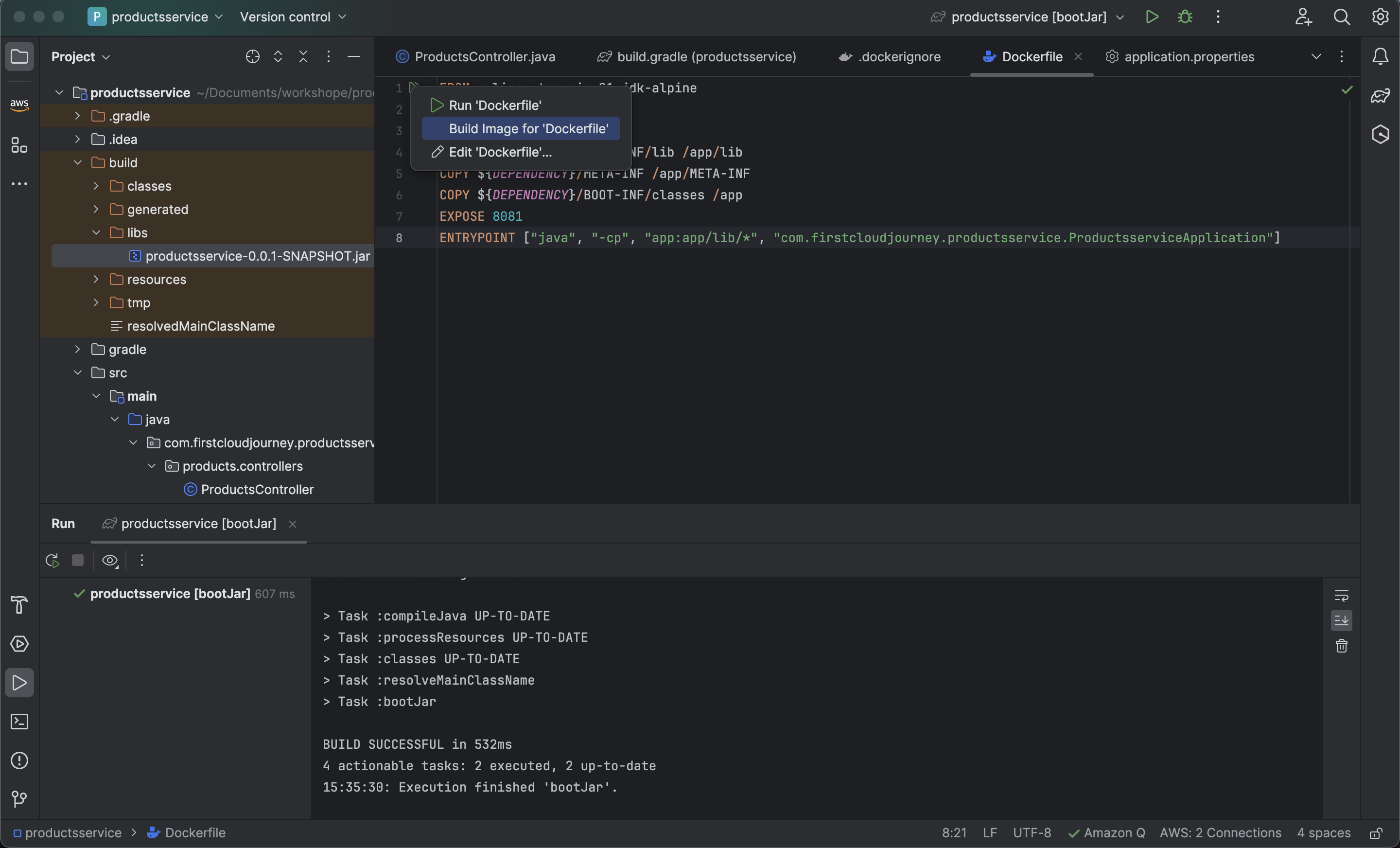
- After successfully creating the image, you should see productsservice:1.0.0 generated.